Videos
Get to know Toolhive step by step

Welcome to Toolhive
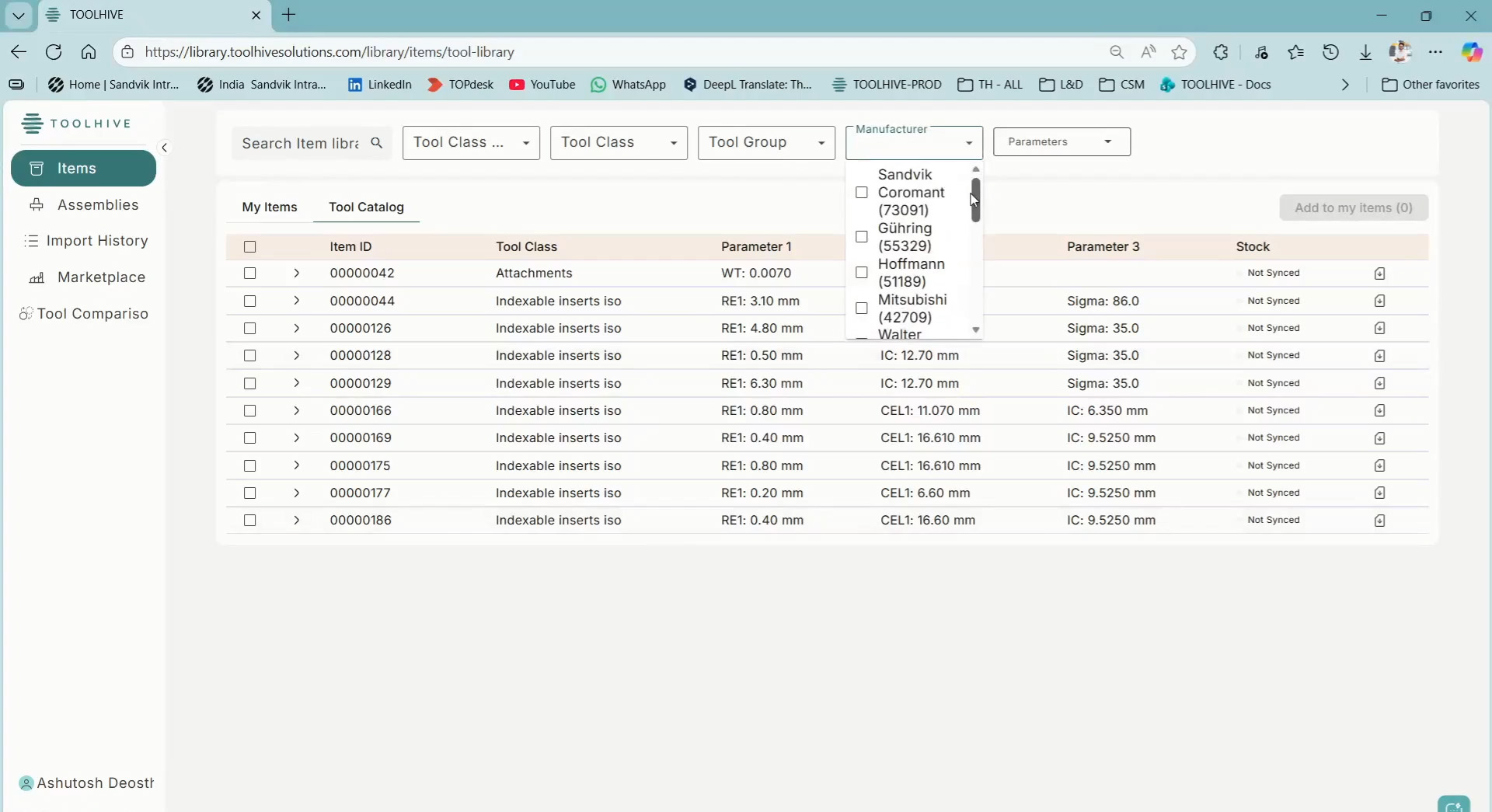
This video provides a clear introduction to Toolhive and guides you through the login process and the main features of the application. After creating an account, users can access the homepage and explore the Items section, which includes My Items and the Tool Catalog with ready‑to‑use tool data from leading brands.
The video also highlights Assemblies, Import History, the Marketplace, Tool Comparison, and Account Settings. Viewers learn how to navigate efficiently and manage tool data within Toolhive. This overview helps new users get started quickly and understand the platform's core capabilities.
How to register
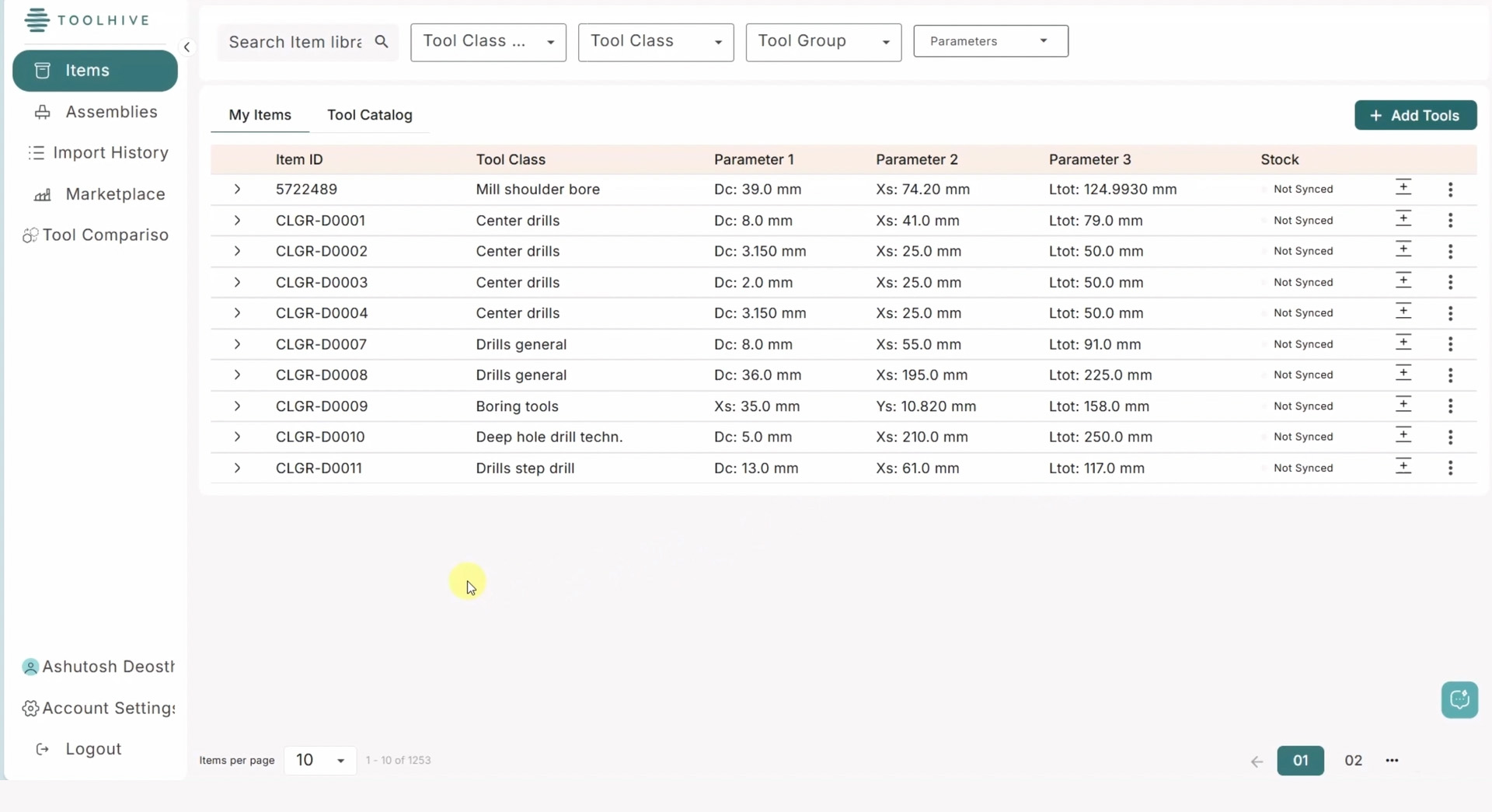
This video shows you how to register for Toolhive and complete the onboarding process step by step. It begins on the Toolhive website, where you select “Get Early Access” and enter your basic information, company details, and address.
After confirming your setup, you will receive an onboarding email with a temporary password and login link. The video also explains how to set a secure new password, complete your profile, choose your measurement system, and decide between demo data or an empty workspace -helping you get started quickly and confidently with Toolhive.
My Items
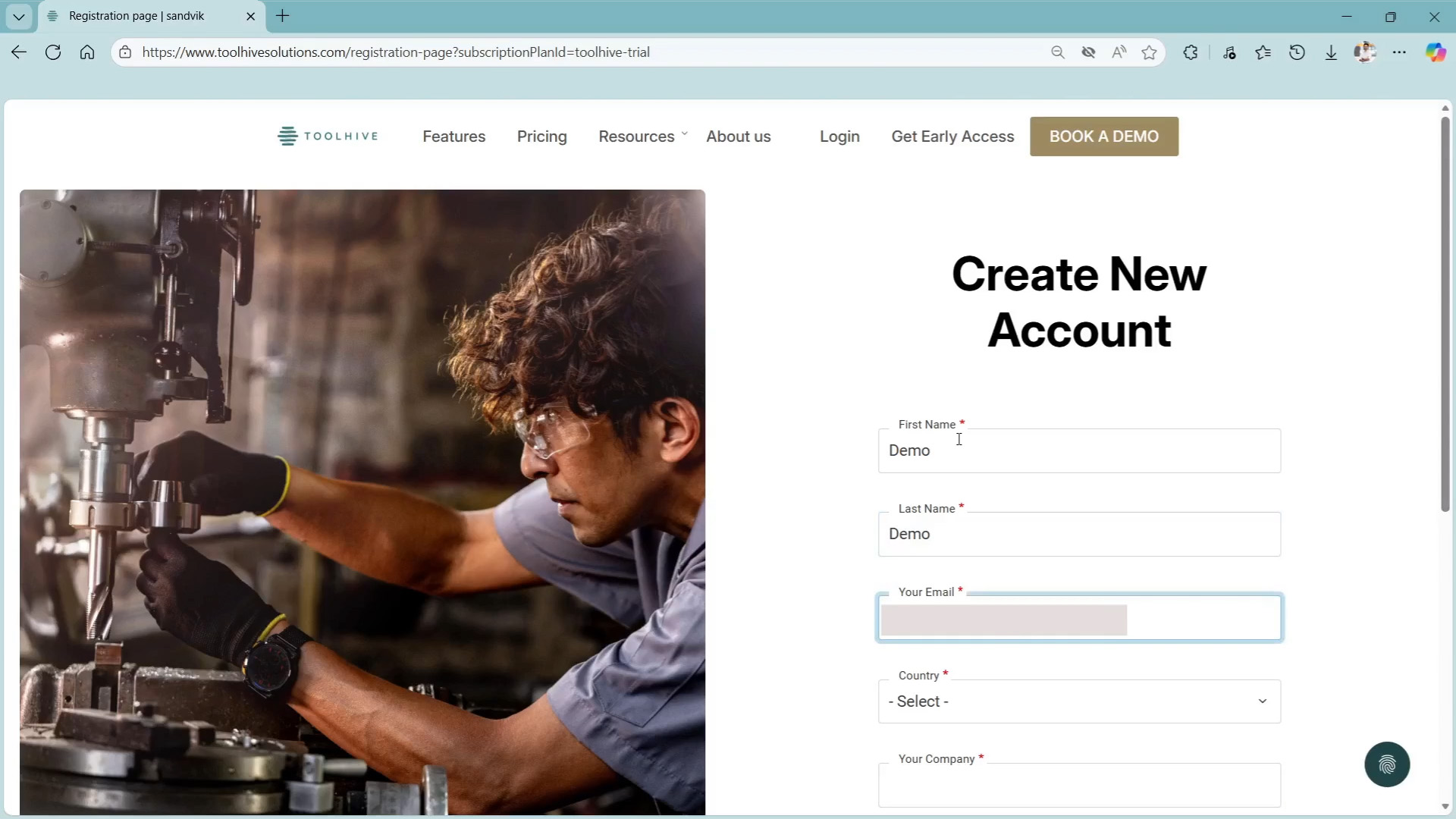
This video explains how to work with the My Items section in Toolhive, where all previously created tool data is stored. Viewers learn how to use filters, search by ID or parameters, and adjust the display settings for better navigation.
The tutorial demonstrates how to search for tools such as a milling cutter by applying specific filter criteria. It also shows how to open quick previews or access detailed views with 2D/3D models, parameters, assemblies, and matching items. This video helps users efficiently locate, review, and understand their tool data within Toolhive.
Tool Catalog
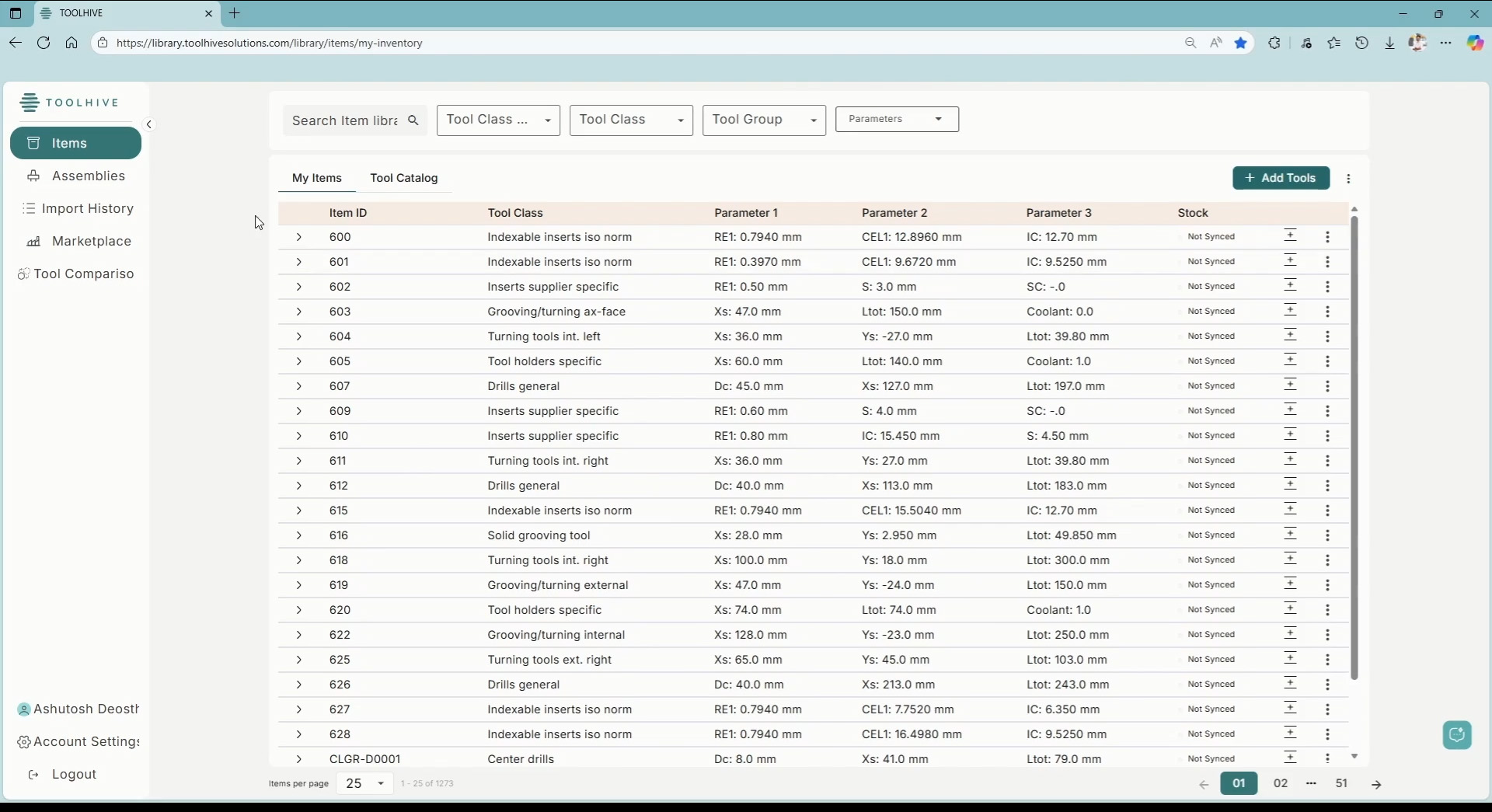
This video introduces the Tool Catalog in Toolhive, an extensive database containing over 430,000 tool articles from 16 leading manufacturers. Viewers learn how to switch from My Items to the Tool Catalog, apply filters, narrow down search results, and view detailed tool information including 2D/3D models and parameters.
The tutorial walks through an example search for a specific milling cutter and explains how to transfer tool articles into the user’s inventory. This video helps users understand how to access and utilize high‑quality tool data within Toolhive’s integrated catalog system.
Mastercam Plugin
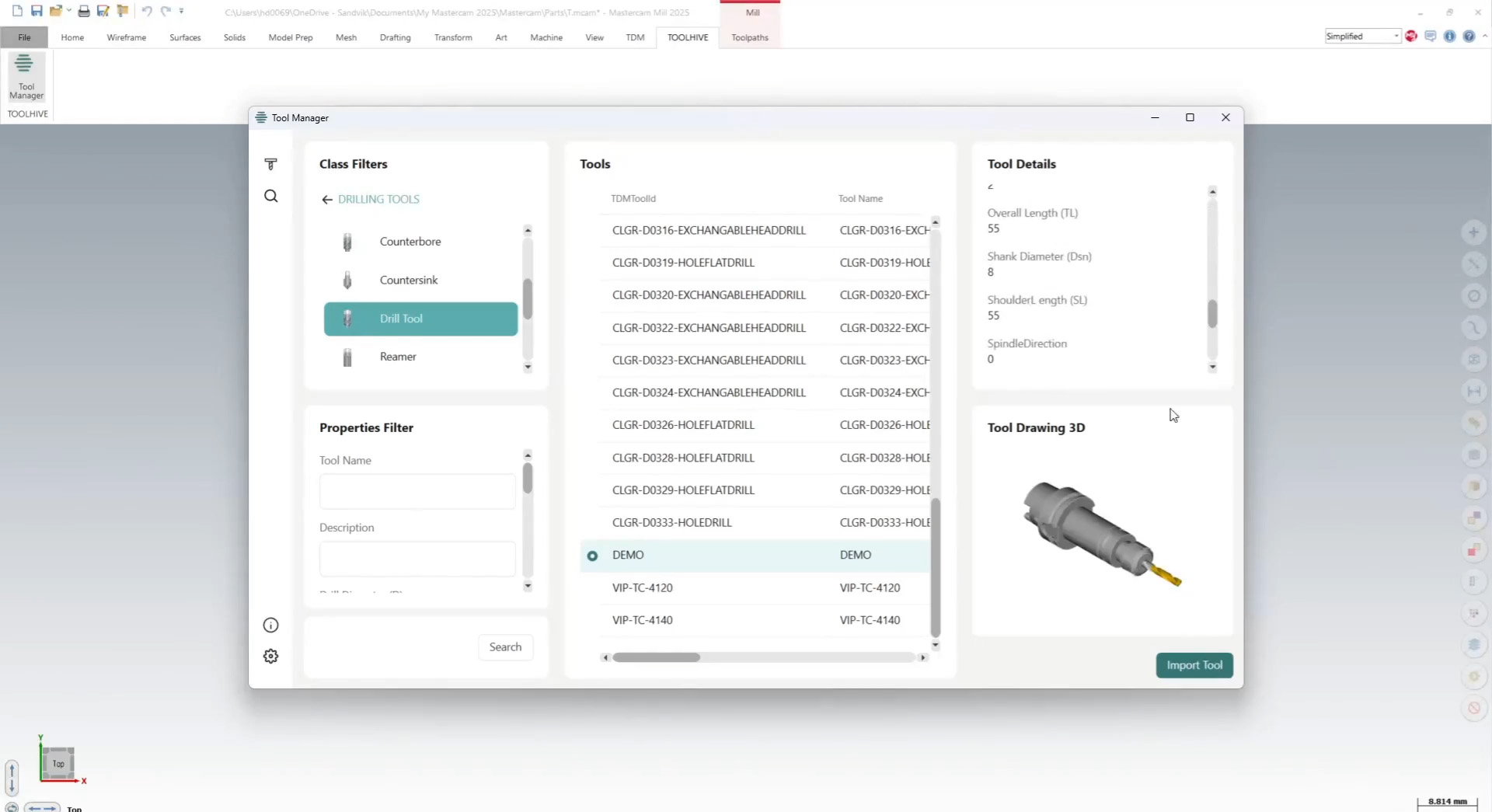
This video demonstrates how to create a complete Tool Assembly in Toolhive and transfer it to Mastercam using the Toolhive-Mastercam Plugin. Viewers learn how to add matching tool items such as collet, holder, and adapter, and how the 2D and 3D assembly views update automatically.
The tutorial shows how to save the assembly, synchronize it with Mastercam, and import it directly into the Tool Manager. This helps users streamline their workflow by building assemblies in Toolhive and using them immediately in Mastercam for precise and efficient CAM operations.
Cimatron Plugin
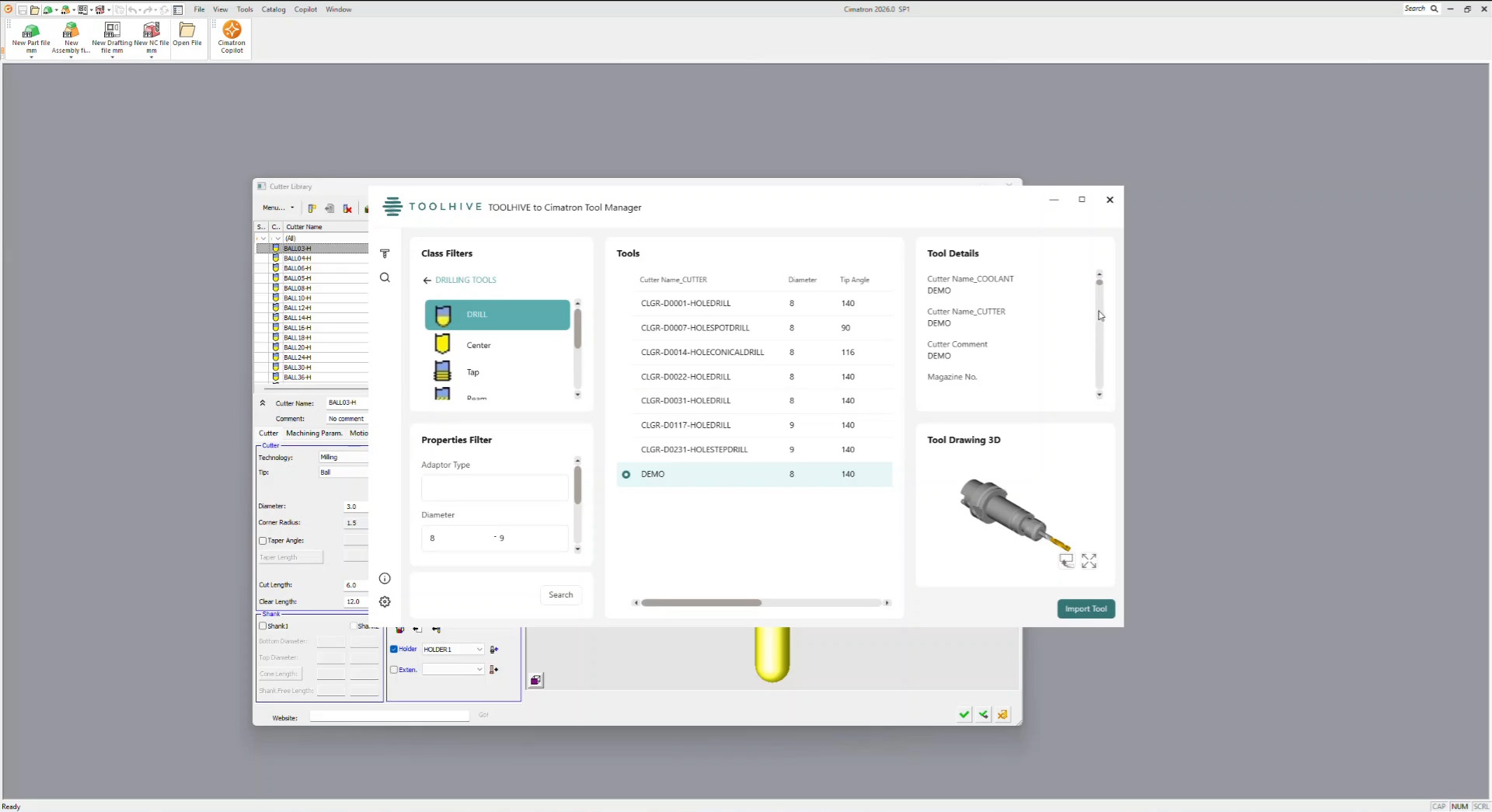
This video explains how to create a Tool Assembly in Toolhive and import it into Cimatron using the Toolhive-Cimatron Plugin. The tutorial guides users through building assemblies step by step, adding collet, holder, and adapter, and saving the finished assembly.
Toolhive synchronizes the assembly automatically with Cimatron, allowing users to access their data directly through “Import Tools from Toolhive.” The video shows how to filter assemblies, search by name or parameters, and import the tool into the Cimatron Tool Library. This ensures smooth integration between Toolhive and Cimatron.
CRIBWISE Integration
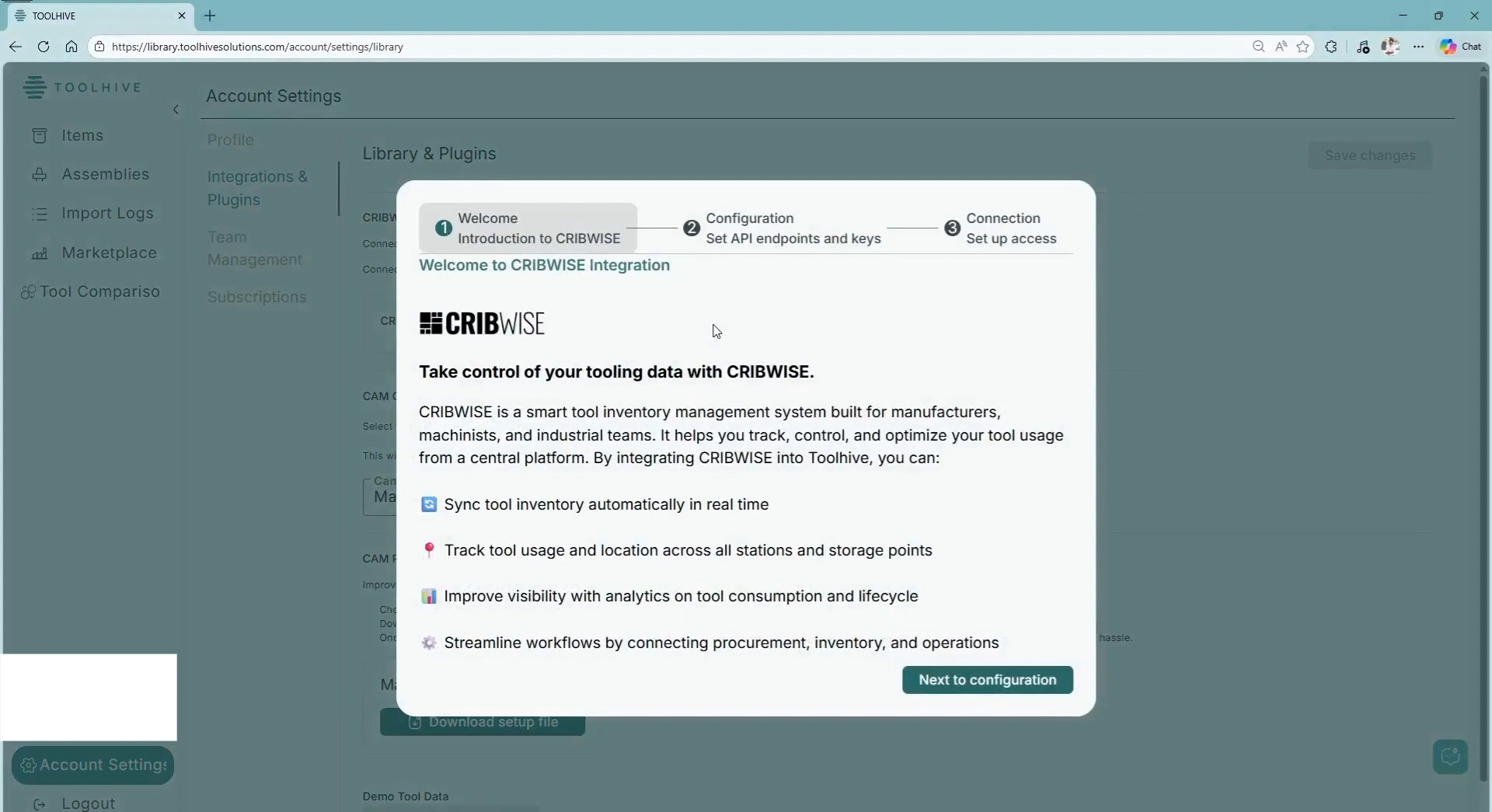
This video explains how to connect Toolhive with your existing CRIBWISE account using the Toolhive–CRIBWISE interface. It shows where to activate the integration in Account Settings, how to enter your CRIBWISE subscription key, and how the connection is finalized.
Once connected, users can review Toolhive items waiting for inventory data, match them with corresponding CRIBWISE articles, and sync stock information directly into Toolhive. The tutorial also highlights how inventory data for released items is transferred and explains that the integration can be updated or removed at any time.